
Still Struggling With DallasGo? How to Register and Avoid the New Fee
Share News:

By now, every Dallas resident with running water in their home should have encountered the city’s upgraded water billing system. By many accounts, the launch of DallasGo came with plenty of hiccups — and frustrated customers.
In May, the city took its water billing system offline for two-and-a-half weeks to transition to the new DallasGo platform, a payment hub for multiple city services, including sanitation, Dallas Fire-Rescue fees and applications, and aviation fees. The move was part of a modernization initiative to head off the legacy system’s end-of-support date in 2027 and ultimately provide “greater system stability, enhanced customer self-service options, and expanded capabilities for future improvements.”
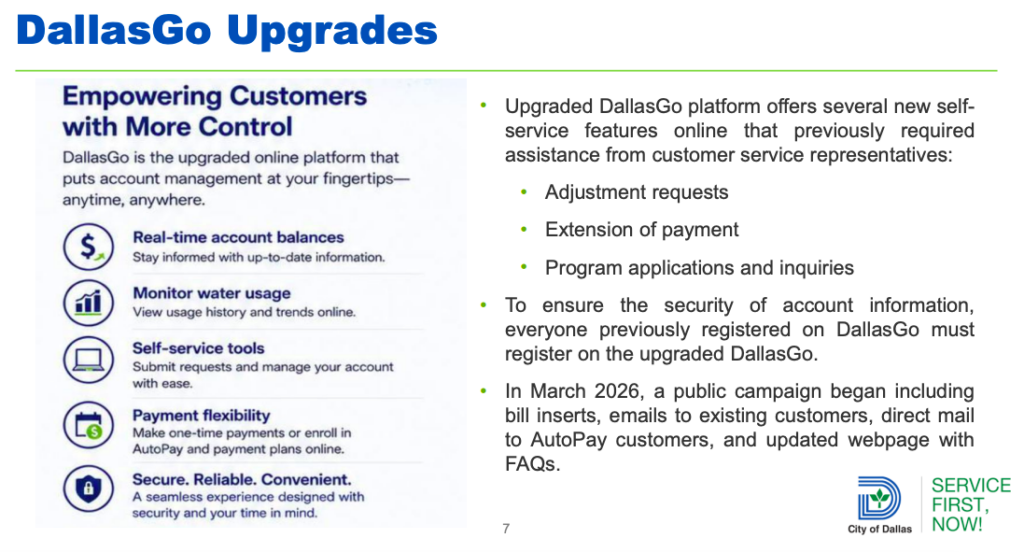
The platform’s rollout for water billing left a lot to be desired, to say the least. There was widespread criticism from residents and council members, who got an earful from their constituents. Customers had to create new DallasGo profiles, and existing auto-pay enrollment and stored payment methods did not migrate from the old system. That meant customers had to set everything up again. But those were just the minor complaints.
Some residents reportedly received erroneous water bills, including bills totaling thousands of dollars. Customer service lines were overwhelmed by customers encountering issues setting up DallasGo logins and linking them to their water accounts. Customers also complained about the platform’s navigability.
The transition also introduced a new 3.15% convenience fee for many online and phone payments made with credit or debit cards, prompting additional frustration from customers.
For anyone still struggling — because not everyone is tech-savvy, but nearly everyone has a water bill — here are the essentials.
How to Create a DallasGo Profile
Step 1: Register
Customers must create a new DallasGo profile before they can manage their water account online. Visit DallasGo.dallas.gov and click on “Register for DallasGo.” It’ll take you to a sign-in page to enter your username and password, but unless you’ve already set up a profile on the new system, click on “Sign up now.” There you’ll enter your full name and email address to register.
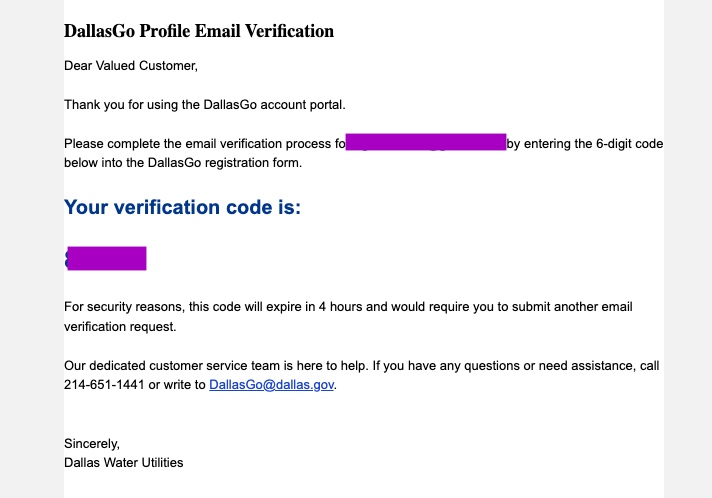
DallasGo will send an email with a one-time security verification code to the email address you provided. If you don’t receive the code within half an hour, check your spam folder. The code expires in four hours, after which time you’ll need to submit another email verification request for the one-time security code.
Step 2: Verification
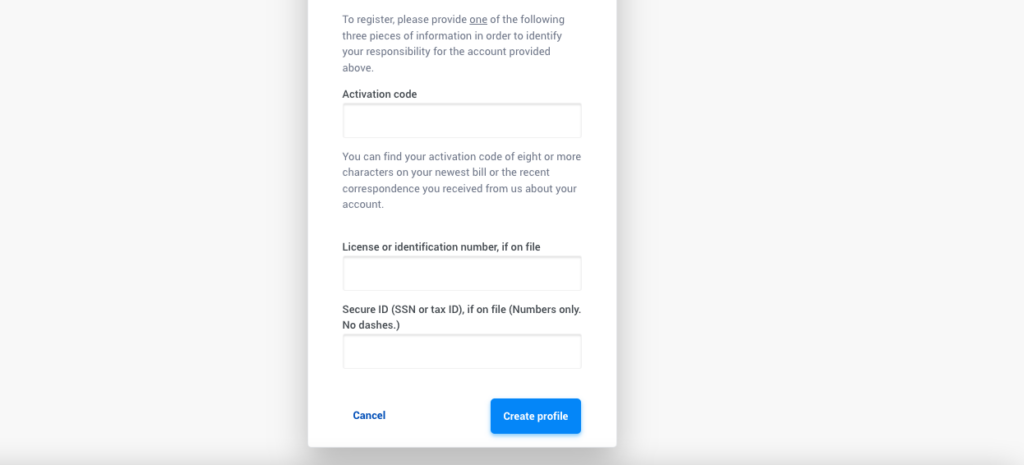
After entering the six-digit verification code, customers will be asked to provide their new account number and one of the following:
- An activation code
- Driver’s license or identification number, if on file
- A Social Security or tax ID number, if on file
Note, the six-digit verification code is different than the eight-or-more character activation code.
Your new account number and activation code were included in transition notices sent earlier this year, but they also appear on your most recent water bill.
Can’t find your new account number or activation code? You can look up both on the city’s new account lookup tool. Enter the street number of your service address and your old account number. You can find your old account number at the top of previous water bills or past DallasGo emails.
Most residential account holders have their driver’s license or Social Security on file as a form of identification. However, you might not have these on file if it’s a commercial account, it’s under a property manager or landlord’s name, or if the account was opened decades ago under older paper-based systems.
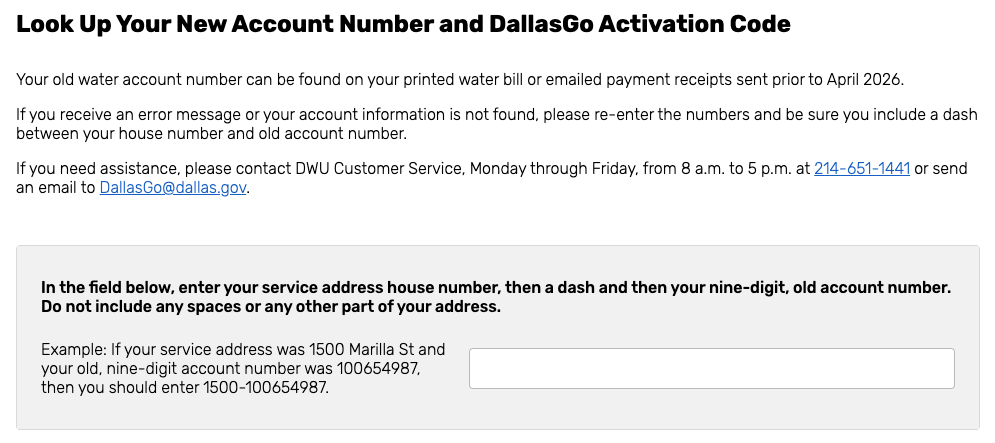
If you cannot locate either, Dallas Water Utilities customer service can look up your account details by calling 214-651-1441 during business hours 8 a.m. to 5 p.m.
Once you enter your new account number and either the activation code or identifying information listed above, the DallasGo registration should be complete. If you need to make a payment, you may use DallasGo’s QuickPay option without signing in, but applicable payment fees will apply.
How to Avoid the 3.15% Payment Fee
One of the biggest points of frustration has been the new convenience fee tacked onto certain payment methods.
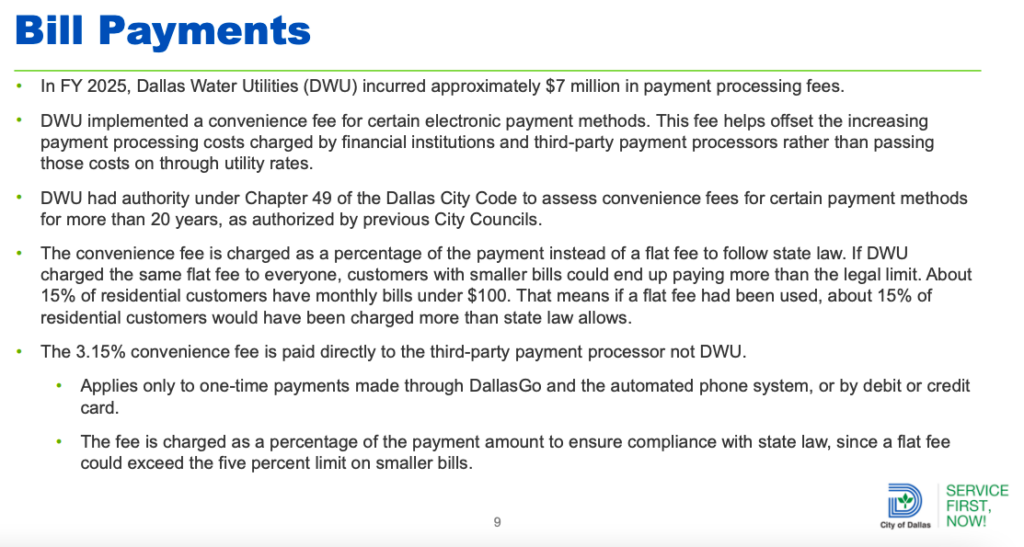
Dallas Water Utilities said the new 3.15% convenience fee is intended to offset the roughly $7 million in annual payment processing costs incurred by the city. Instead of passing on that expense to all ratepayers through higher utility rates, officials decided to apply the fee to customers who pay online by debit or credit card and customers who make one-time payments through DallasGo or the automated phone system.
The city said the money goes directly to its third-party payment processor rather than DWU.
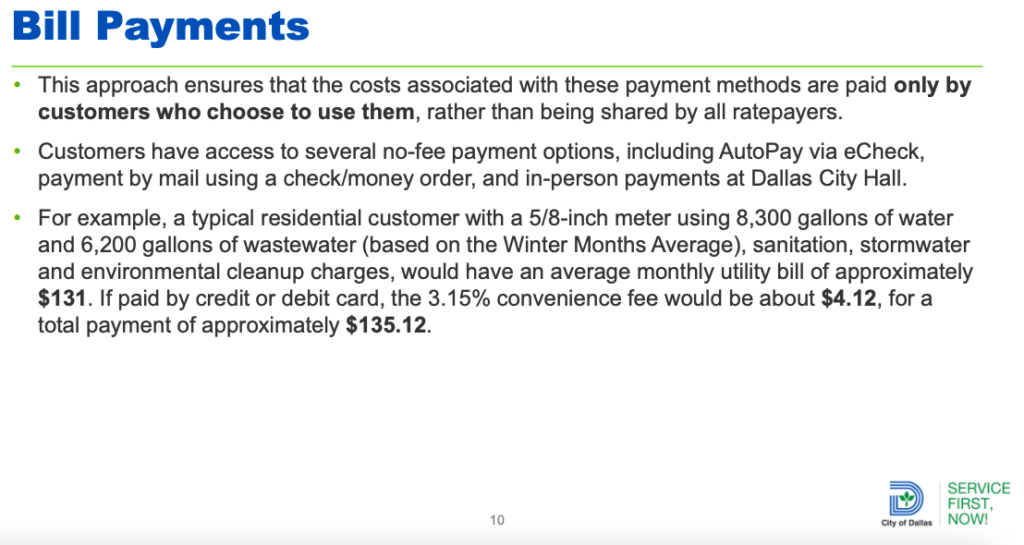
Customers can avoid the fee by:
- Enrolling in auto-pay using an eCheck linked to a bank account
- Mailing a check or money order
- Paying in person at City Hall
Setting up eCheck AutoPay requires a bank account and routing number. Customers who previously used AutoPay must enroll again in the upgraded system.
Here’s a more robust explanation that was part of a recent community meeting presentation about the DallasGo transition:
Customers who reportedly found themselves with unexpected, incorrect bills might understandably be reluctant to sign up for automatic payments. CandysDirt.com asked the city whether the reported launch problems have been resolved, and this story will be updated if a response is received.
Regardless, if any issues do arise, there’s the city’s dedicated customer service team, which hopefully still isn’t being inundated with requests. They can be reached at 214-651-1441 and [email protected].
Being forced to register for a new system is frustrating enough without an unexpected bill or a fee attached to a familiar payment method. For now, customers’ best defense is knowing where to recover their account information, how to register, and which payment options remain free.